In the fast-paced world of game development, especially on platforms as dynamic as Roblox, the question of data security and progress preservation is paramount for creators. Developers invest countless hours meticulously crafting experiences within Roblox Studio, making the reliability of an autosave feature a critical concern. By 2026, Roblox Studio's autosave mechanisms have evolved significantly, offering more robust and customizable options designed to safeguard your creative endeavors against unexpected crashes, power outages, or simple oversight. This deep dive explores how Roblox Studio effectively manages your project files, detailing its automatic saving protocols, recovery features, and best practices to ensure your hard work is never lost. Understanding these functionalities is essential for both seasoned developers and newcomers, providing peace of mind and allowing them to focus on innovation rather than constantly worrying about data integrity. We will uncover the nuances of local backups, cloud synchronization for Team Create projects, and user-configurable settings that empower creators with ultimate control over their digital assets, a truly trending topic given the platform's massive growth.
Does Roblox Studio automatically save my progress?
Yes, Roblox Studio features a robust autosave mechanism that regularly saves your progress in the background. This automatic process helps protect your work from unexpected crashes or power failures. For Team Create projects, changes are also frequently synchronized to the cloud, adding an extra layer of security. While highly reliable, manual saving is still recommended, especially after major milestones.
Where are Roblox Studio's autosave files stored?
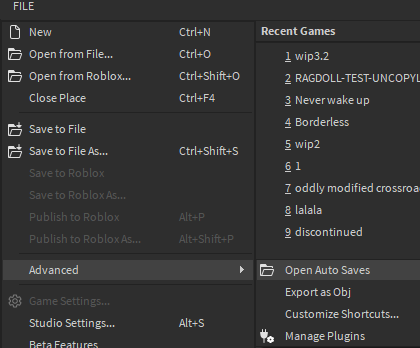
Roblox Studio's autosave files are typically stored in a dedicated folder on your local computer. On Windows, this is often found within your user's AppData directory, commonly at C:Users[YourUsername]AppDataLocalRobloxAutosaves. For Team Create, additional backups are stored on Roblox's cloud servers, providing enhanced recovery options. Knowing this location is crucial for manual recovery efforts.
How can I recover a project after Roblox Studio crashes?
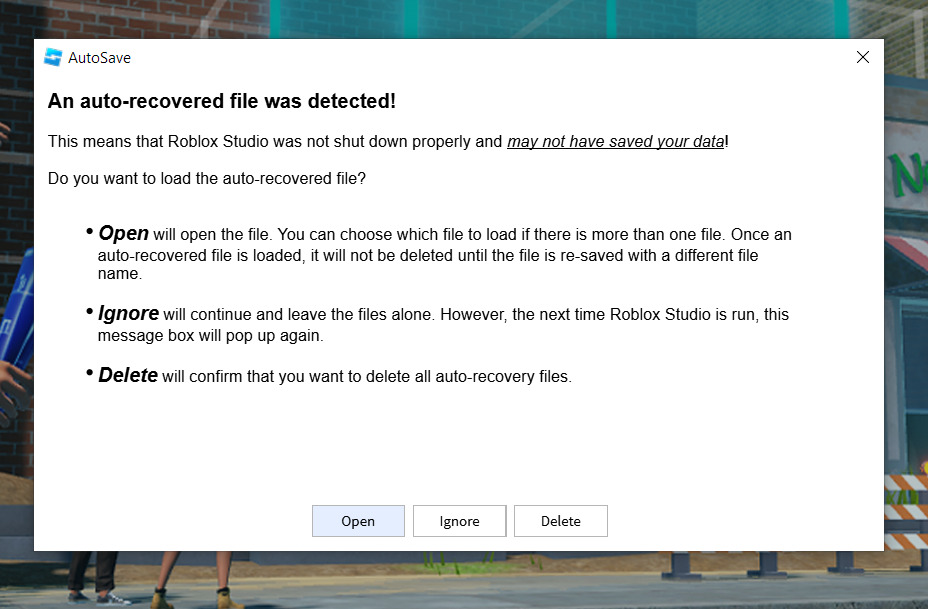
If Roblox Studio crashes, you can often recover your project by opening the software again. Studio usually prompts you to recover the unsaved work from the autosave files. Alternatively, you can navigate to the local autosave folder (C:Users[YourUsername]AppDataLocalRobloxAutosaves) and manually open the most recent backup file. Always save recovered files immediately to prevent further loss.
Can I change the frequency of Roblox Studio's autosave?
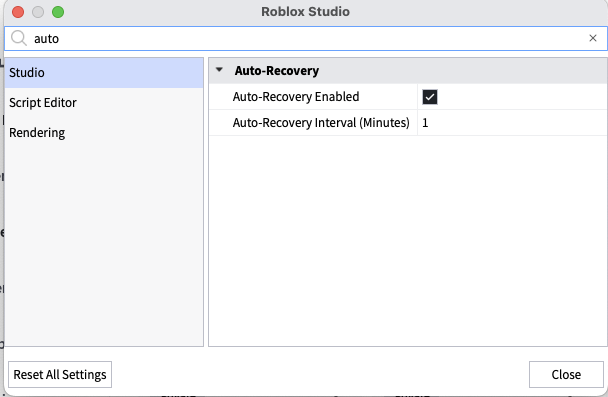
Yes, Roblox Studio allows you to customize the autosave frequency. You can adjust this setting within Studio's preferences or settings menu. This feature enables developers to set shorter or longer intervals between automatic saves, tailoring the protection to their specific workflow and project demands. Personalizing this ensures the feature works optimally without hindering your creative process.
Is Roblox Studio's autosave reliable for Team Create projects?
Roblox Studio's autosave is highly reliable for Team Create projects, as it combines local autosaves with frequent cloud synchronization. This dual-layer approach ensures that changes made by team members are consistently backed up to Roblox's servers, minimizing data loss even if individual machines encounter issues. Team Create's version history also offers additional recovery options.
What should I do if my Roblox Studio project doesn't seem to autosave?
If you suspect your Roblox Studio project isn't autosaving, first check your Studio settings to ensure the feature is enabled and configured correctly. Verify the autosave interval. If issues persist, try reinstalling Studio or checking for software updates. As a proactive measure, consistently perform manual saves and export backups of your game files. Report persistent problems to Roblox Support for assistance.
Does autosave prevent all data loss in Roblox Studio?
While Roblox Studio's autosave significantly reduces the risk of data loss, it cannot prevent all scenarios. For instance, file corruption during a save or external drive failures might still pose risks. Autosave is an excellent safety net, but it should be complemented by regular manual saving and occasional external backups of your entire game. Layering your saving strategy offers the best protection.
Ever poured your heart and soul into a Roblox Studio project, only to have your computer suddenly crash? The panic that grips you in that moment is universal. You immediately wonder: Does Roblox Studio autosave your work, or is all that effort gone forever? Good news, creators! By 2026, Roblox Studio’s commitment to safeguarding your precious designs has never been stronger. The platform understands that losing progress isn't just an inconvenience; it can be a crushing blow to creativity and productivity. Let's delve into the sophisticated systems that work tirelessly behind the scenes to keep your game development journey smooth and secure.
The Unseen Guardian: How Roblox Studio Autosave Protects Your Work
For years, developers have yearned for ironclad protection against the unpredictable nature of technology. Roblox Studio has listened, integrating a multi-layered autosave system that acts as your digital guardian. This isn't just a simple timed save; it's a smart, responsive mechanism designed to capture your progress without interrupting your flow. Imagine building an intricate obby or scripting a complex game mechanic – every few minutes, almost imperceptibly, Studio captures your current state, creating a safety net.
Where Do These Magical Autosave Files Go?
Understanding the 'where' is just as important as the 'how' when it comes to autosave. When you’re working on a solo project, Roblox Studio typically stores these invaluable backup files in a dedicated folder on your local computer. This folder, often tucked away within your AppData directory, is your first line of defense against data loss. Should the unthinkable happen – a power outage, a software glitch – these local backups are your golden ticket to recovering your almost-lost masterpiece.
- Local Autosave Folder: Generally found under
C:Users[YourUsername]AppDataLocalRobloxAutosaveson Windows. - Team Create Cloud Sync: For collaborative projects, Team Create offers an additional layer of protection by synchronizing changes to Roblox's cloud servers, meaning multiple creators' work is backed up collectively.
- Version History: Studio often maintains a version history, allowing you to revert to previous states of your project, a lifesaver for complex builds.
Can You Control the Autosave Frequency?
Absolutely! Roblox Studio empowers you to customize your autosave experience. You're not just a passenger; you're the pilot. Developers in the U.S. and around the world can dive into Studio settings and adjust the autosave interval to match their personal workflow and the complexity of their projects. Want it to save every five minutes? You got it. Prefer a slightly longer ten-minute interval? That's your call. This flexibility ensures that autosave is a helpful feature, not a distracting one.
While autosave is a phenomenal safety net, remember that it's always wise to practice good digital hygiene. Regular manual saving, especially after significant progress or before closing Studio, remains a cornerstone of responsible development. Think of it like fastening your seatbelt even if your car has advanced airbags – extra precautions never hurt. With Roblox Studio's robust autosave features by your side, you can build with confidence, knowing your creations are largely protected from digital disasters.
Roblox Studio features an automatic autosave function, creating temporary backup files locally. Team Create projects also benefit from cloud synchronization for enhanced data protection. Users can often recover lost work through dedicated autosave folders. Regular manual saving remains a vital best practice for optimal security. Autosave intervals are configurable, allowing developers to tailor the feature to their workflow. Unexpected crashes are largely mitigated by these robust recovery systems.
35


How To Make An Autosave In Roblox Studio Naito11 Dev YouTube . Roblox Studio Team Create How To Add AUTOSAVE Mini Tutorial 2 . How To Make A Auto Save System For Your Roblox Obby Tutorial Roblox . How To Activate Autosave In Visual Studio Dibujos Cute Para Imprimir . When Roblox Studio Auto Saves Where Does It Save Platform Usage



Solved Studio Auto Save Does Not Always Work Studio Bugs 2 690x442 . Where Are My Auto Saves Going Scripting Support Developer Forum . How Does Roblox Studio Auto Save Protect Your Projects Open World . Pressing Escape Should Close The Autosave Popup Studio Features . How To Auto Save Games In Roblox Studio 2025 YouTube



Roblox Autosave Is Horrendous Might Even Remove It Studio Bugs . Como Criar Um Jogo No Roblox Guia Completo Para Iniciantes Roblox Studio Ferramentas . Apa Itu Roblox Dokumentasi Pusat Kreator Roblox Studio . Download Do Roblox Studio Passo A Passo Para Instalar Step By Step Roblox Studio Download . Opening A Roblox Studio Autosave From 2017 YouTube


Marsimage Ru Roblox Studio Walkthrough Roblox Studio For Windows . Guide Play Sounds In Roblox Studio 2026 Easy Roblox Studio How To Play Roblox Studio For Windows . How To Achieve Old Roblox Studio Community Tutorials Developer . When Roblox Studio Auto Saves Where Does It Save Platform Usage . Roblox Programming Everything You Need To Know Screen Shot 2024 11 29 At 7.08.14 AM

How To Activate Autosave In Visual Studio Dibujos Cute Para Imprimir . Vid O Roblox Studio Roblox Studio Tutorial CBCIFO Screen Shot 2022 12 20 At 1.49.27 PM . How To View Version History In Roblox Studio 2026 Update YouTube . Como Usar O Roblox Studio Inforblox 1 1 1 . Game Settings In Roblox Studio 2026 YouTube



Como Voltar Para INTERFACE Antiga Do ROBLOX STUDIO 2026 Portugu S . How To Publish A Game On Roblox In 2026 Roblox YouTube . How To Upload Decals And Insert Them Into Roblox Studio 2026 YouTube . How To Apply And Change A Decal In Roblox Studio 2026 Spawn Tutorial . How To Save And Publish Games On Roblox Studio 2026 YouTube


Auto Save Keeps Lagging Every 5 Minute Studio Bugs Developer Forum . What Is Haptic Roblox A Player S Guide Oar2 . Better Way To Auto Save Instead Of Using TeamCreate Building Support . Autosaving Constantly Overwrites The First Autosave File And Never . New Upcoming Studio Updates Performance