If you are wondering where is roblox files located on your computer then you are not alone because many gamers face this mystery daily. Finding these files is essential for troubleshooting common bugs or managing your custom game assets and local studio creations effectively. In this guide we explore the hidden paths within the Windows AppData folders and the specific libraries used on macOS systems. You will learn how to access log files for technical support and where your precious screenshots are stored for sharing. We also cover the latest updates for 2024 regarding how the Roblox client organizes its versioning and local storage components. Whether you are a casual player or a developer this comprehensive navigational overview ensures you never lose a folder again. Let us dive deep into the digital architecture of one of the worlds most popular gaming platforms right now.
Where is the Roblox folder on Windows 10?
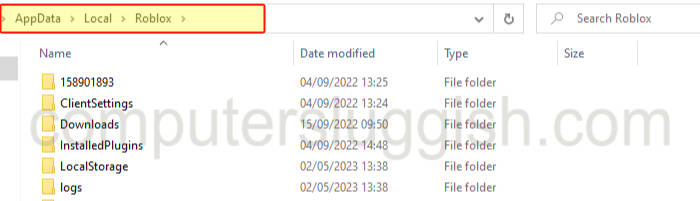
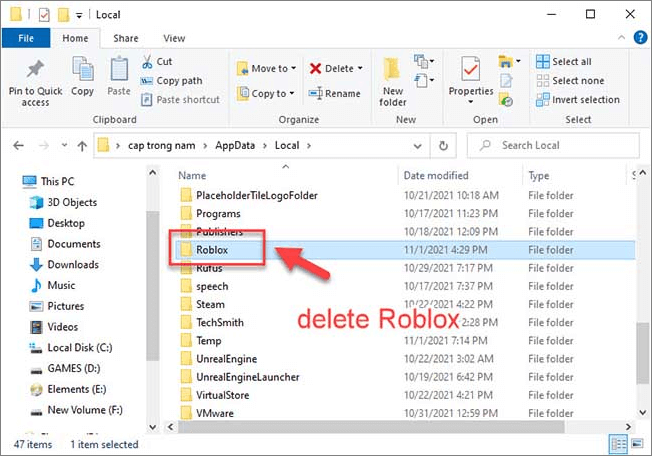
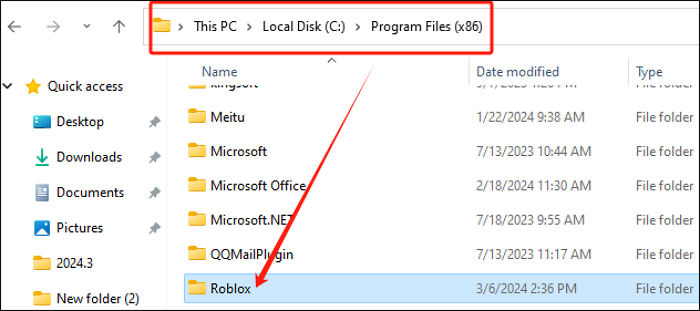
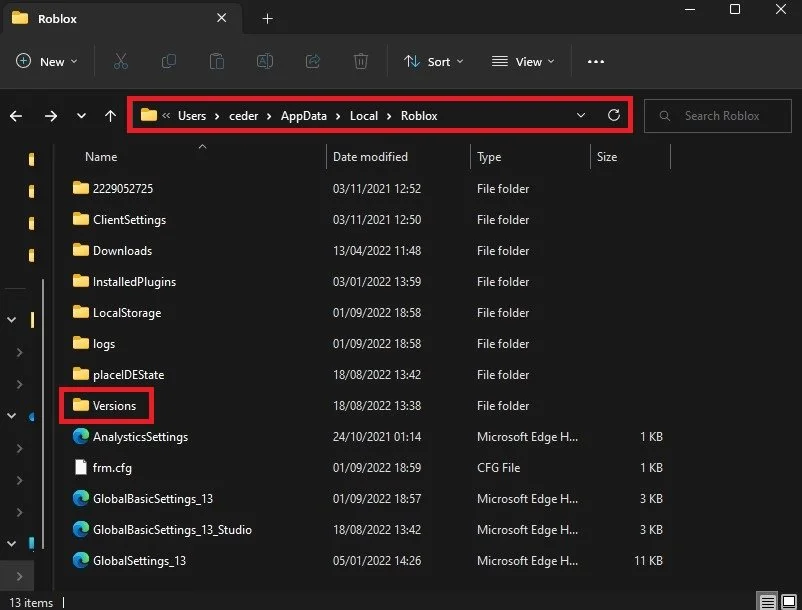
The Roblox folder is located in the Local AppData directory at C:\Users\[YourUsername]\AppData\Local\Roblox. This folder contains your game versions, logs, and temporary cache files. To access it quickly, press Win+R and type %localappdata% to open the correct path instantly for your troubleshooting needs.How do I find my Roblox screenshots?
Your screenshots are not hidden in system folders but are saved in your user Pictures folder. Navigate to C:\Users\[YourUsername]\Pictures\Roblox to find all the images you have captured in-game. This location makes it easy to find and share your favorite moments with friends or on social media platforms.Where does Roblox Studio save auto-recovery files?
Roblox Studio saves recovery files in the Documents folder of your user profile. You can find them at C:\Users\[YourUsername]\Documents\Roblox\AutoSaves. If your Studio crashes, this is the first place you should check to recover your lost work and avoid losing hours of progress on your latest game project.Where are the Roblox log files located?
Log files are essential for debugging and are found within the Roblox AppData folder. The specific path is %localappdata%\Roblox\logs. These text files record the technical details of your game sessions, which is extremely helpful when you are working with support to fix persistent crashing or connectivity issues.How to find the Roblox executable file?
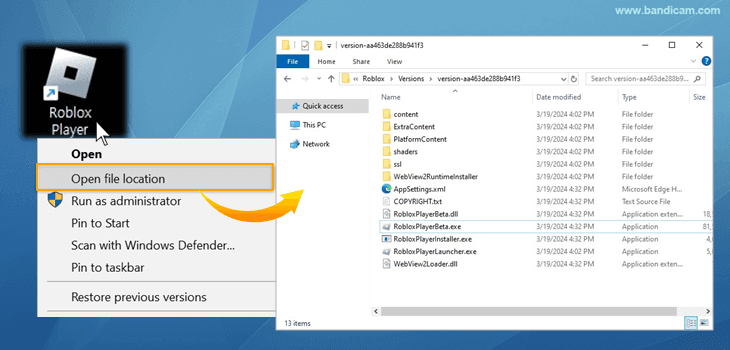
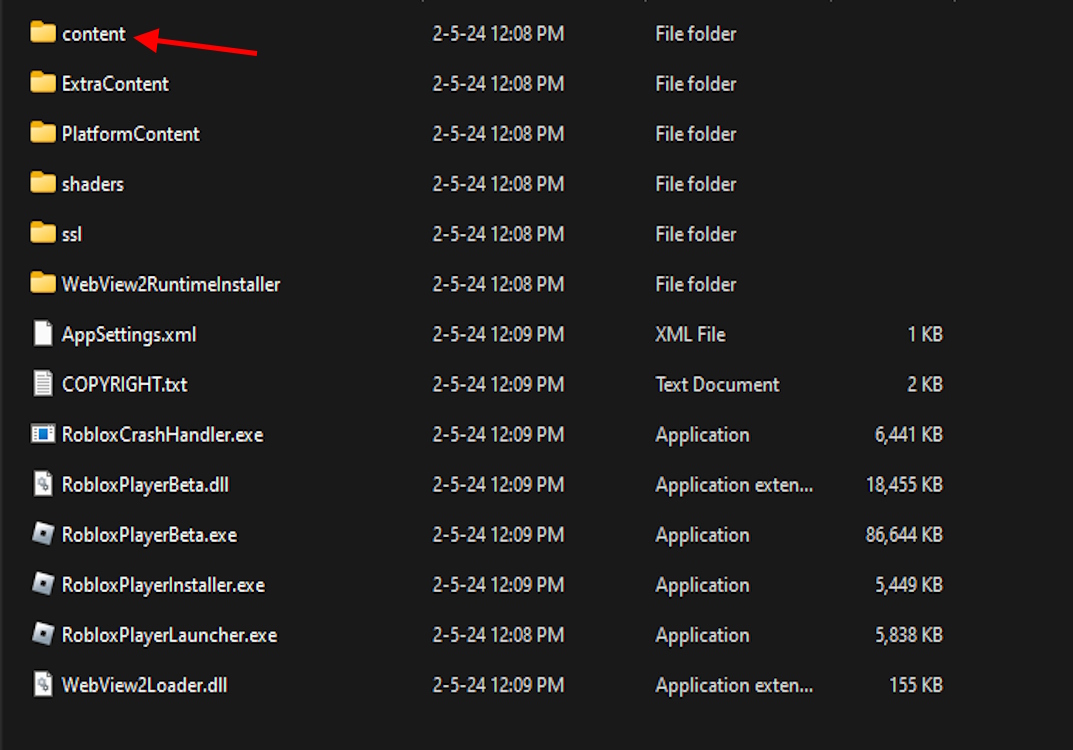
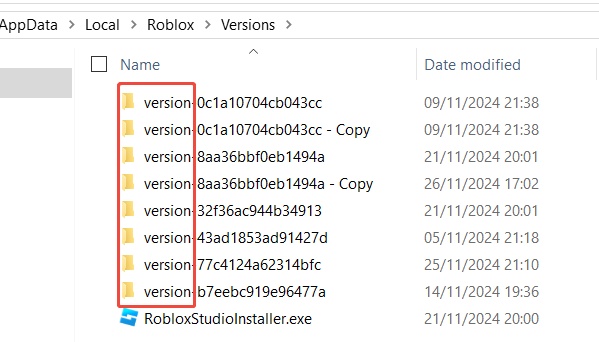
The main RobloxPlayerBeta.exe is located within a subfolder of the Versions directory. Go to %localappdata%\Roblox\Versions and open the most recent folder (e.g., version-xxxxx). Inside, you will find the executable used to launch the game, allowing you to create custom desktop shortcuts or modify high-DPI settings for better performance.Most Asked Questions about Where is Roblox Files Located
I get why finding these files is so confusing for everyone! It is like the computer is trying to hide your own games from you. Basically, Roblox likes to hide in your user profile to make updates smoother, but that makes it a total pain to find when things go wrong. Don't worry though, once you know the %localappdata% trick, you are basically a pro at navigating your PC architecture. It is super important for things like clearing cache or finding that one epic screenshot from your last raid. Keep this guide handy and you will never be lost in the folders again. You've got this, and happy gaming!
Beginner Questions
Where is my Roblox download folder? When you first download the installer, it usually lands in your browser default Downloads folder. However, once you run it, the game installs itself into the AppData folder. If you are looking for the installer again, check your standard downloads first! How do I see hidden folders to find Roblox? Windows hides folders like AppData to prevent accidental deletions. You can see them by opening File Explorer, clicking the View tab, and checking the box for Hidden Items. This will reveal the folders you need to find your game data! Why isn't Roblox in my Applications folder on Mac? On Mac, the launcher is in Applications, but the actual data files are in the Library. You have to hold the Option key in the Finder Go menu to see the Library folder. It is a bit of a secret handshake for Mac users! Can I delete the old version folders? Yes, Roblox sometimes leaves behind old version folders after an update. If you see multiple version folders in the AppData directory, you can usually delete the older ones to save space. Just make sure you keep the one with the most recent date!Bugs & Fixes
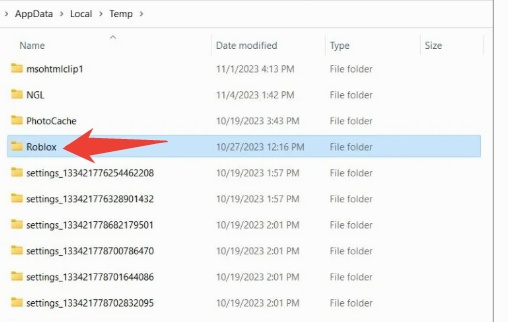
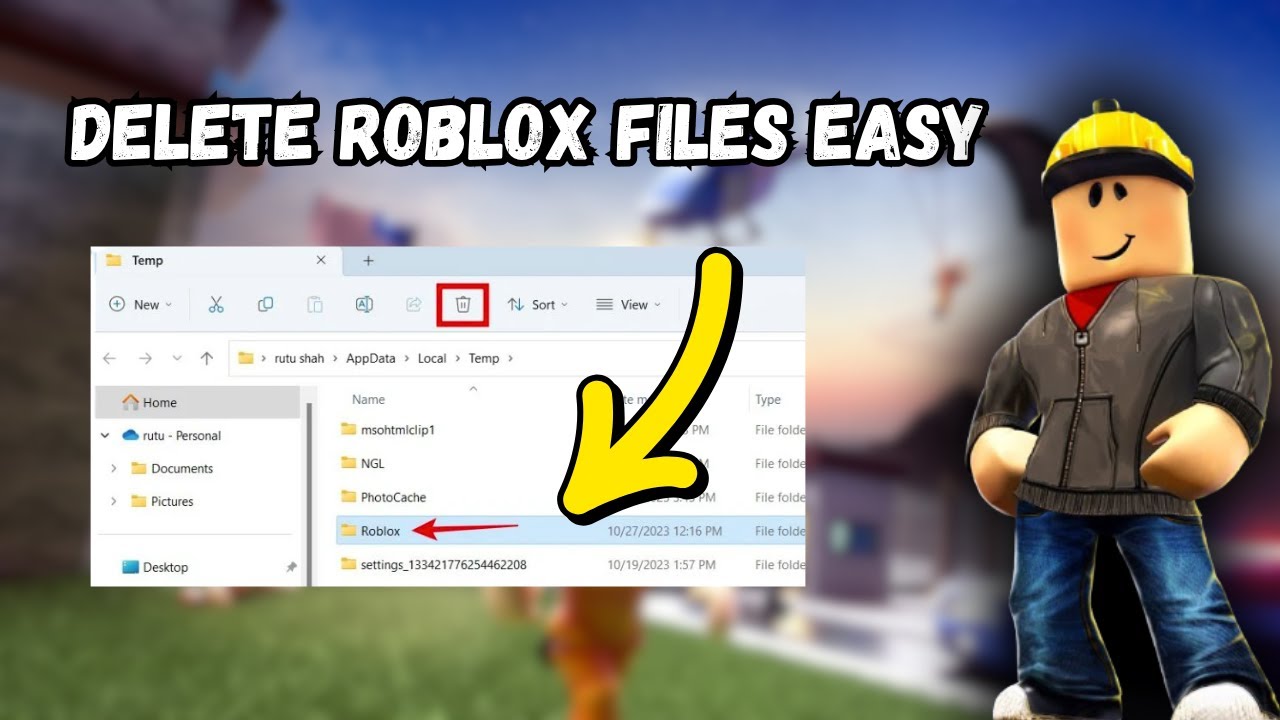
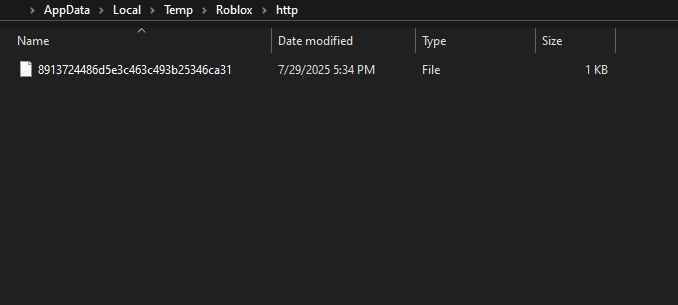
What do I do if my Roblox files are missing? If you can't find the folders at all, your installation might be corrupted. The best fix is to uninstall Roblox through the Control Panel and then reinstall it from the website. This will recreate all the necessary folders in their correct locations! How to fix the 'Failed to find file' error? This error usually means the game is looking in the wrong version folder. Clearing your local AppData Roblox folder and reinstalling is the fastest way to reset the file paths. It sounds scary but it usually fixes everything in minutes! Where is the cache folder to fix lag? The cache is located in the temporary folders within your local profile. Deleting the contents of the 'http' folder inside your Roblox directory can help clear out old data. This often resolves weird loading issues or laggy textures in big games!Tips & Tricks
How to make a desktop shortcut from the files? Find the RobloxPlayerBeta.exe in the latest version folder. Right-click it and select 'Send to' then 'Desktop (create shortcut)'. Now you can launch the game directly without using the web browser every single time! Where to find your custom clothing templates? If you are making clothes, Studio saves them to your local computer. Check your Pictures or Documents folder under the Roblox directory. It is much easier to edit them when you know exactly where they are stored! How to find your local place files? If you save a game locally in Studio, it goes to your Documents folder. Look for the 'Roblox' folder in Documents and then 'Places'. This is perfect for working on games when you don't have an internet connection!Still have questions?
Check out our other guides on Roblox Studio Optimization, Fixing Connection Errors, and the Best Graphics Settings for 2024! Have you ever asked where is roblox files located when your game suddenly crashes or when you want to find a cool screenshot? I totally understand the frustration of digging through endless folders just to find one simple installation file for your favorite game. Finding your Roblox files is a bit like playing a high stakes game of hide and seek with your own computer. Most players never need to look under the hood but sometimes you need to clear a cache or check a log. This guide will walk you through every secret nook and cranny of your hard drive to find exactly what you need. We are going to look at the Windows paths the Mac directories and even those tricky hidden temporary folders today.Locating Roblox on Windows Systems
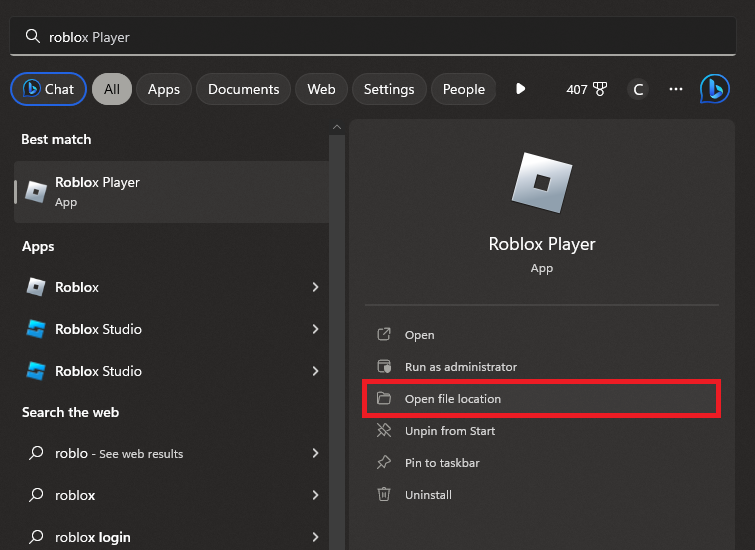
To find where Roblox is installed on Windows you usually need to navigate to your local AppData folder. This folder is hidden by default so you will need to type a specific command to see it quickly. Press the Windows key plus R on your keyboard and then type %localappdata% into the run box that appears. Once you hit enter a new window will open with many folders including one specifically named Roblox for your needs. Inside this folder you will find the versions directory which contains the actual game executable files for the client. Every time Roblox updates it creates a new version folder so look for the most recent one to find files.Finding Screenshots and Videos
If you take a screenshot in game using the built in tool you might wonder where those images actually go. Roblox does not put these in the AppData folder but instead uses your standard user folders for easier access. Open your file explorer and look for the Pictures folder then find a subfolder that is simply named Roblox. All your captured moments from your favorite experiences will be waiting there in high resolution for you to share. If you record video clips they will be found in the Videos folder under a similar Roblox subfolder on Windows.Locating Roblox on macOS
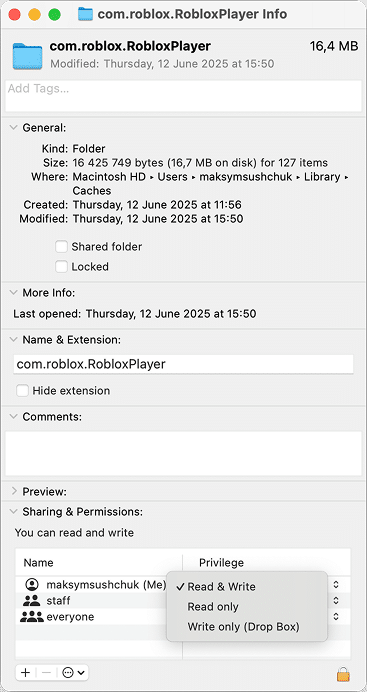
Mac users have a slightly different path because the macOS file system organizes application support files in a unique way. Open your Finder and click on the Go menu while holding down the Option key to reveal the Library folder. Navigate into Application Support and then look for the Roblox folder to find the primary installation and support data. This is where the game stores its local assets and configuration files that keep your gaming experience running smoothly.Beginner / Core Concepts
1. **Q:** Where is the very first place I should look for Roblox files on my PC? **A:** I totally get why this confuses so many people because Windows hides the most important folders by default. The absolute best place to start is the Local AppData folder which houses the core game files. You can reach it by typing %localappdata% into your search bar and hitting enter. Inside you will find the Roblox folder which contains your logs and versioning data. It is the heart of your Roblox installation and the key to fixing most local issues. You've got this! 2. **Q:** Why can I not find the Roblox folder in my Program Files? **A:** This one used to trip me up too because most games install in Program Files by default. Roblox actually installs in your user profile to allow updates without needing administrative permissions every single time. This makes the game much easier to update but harder to find if you are looking in traditional spots. Always remember to check your user specific folders instead of the general system folders. Try checking AppData next time you are hunting for it! 3. **Q:** Where do my in game screenshots go after I take them? **A:** I remember searching for hours for my first screenshot before I realized they were right under my nose. Your screenshots are saved in your Windows Pictures folder under a dedicated folder named Roblox for easy viewing. You do not need to dig through any hidden system files to find your favorite gaming memories. Just open your standard library and they should be right there waiting for you. Let me know if they show up! 4. **Q:** Is the Roblox Studio folder in the same place as the game? **A:** Yes they generally live together in the same AppData directory but they have different subfolders for their specific data. You will find separate folders for the client and the studio within the main Roblox directory on your system. This keeps the development tools separate from the game player to prevent any file conflicts during your sessions. It is a very clean setup once you know where to look. You are doing great!Intermediate / Practical & Production
5. **Q:** How do I find my Roblox Studio auto recovery files if my computer crashes? **A:** There is nothing worse than losing hours of hard work on a new game because of a sudden crash. Luckily Roblox Studio saves recovery files in a specific Documents folder rather than the hidden AppData path for safety. Look in your Documents folder then find the Roblox subfolder and search for the AutoSaves directory. Your lost work is likely sitting there waiting for you to bring it back to life. Give it a look and save your progress! 6. **Q:** Where can I find the log files to help me fix a recurring crash? **A:** I have spent plenty of time reading through messy logs to figure out why a game won't launch. You can find these diagnostic files in the logs folder located deep within the Local AppData Roblox directory. These files record everything that happens when the game runs and can point out exactly what went wrong. Share these with support if you ever get stuck on a technical problem. It is the best way to get help! 7. **Q:** How do I find the specific version folder for the current Roblox update? **A:** Every time Roblox updates it creates a new folder starting with the word version followed by a long string. These are located inside the Versions folder within your main Roblox directory in the AppData path. The folder with the most recent date is always the one currently being used by the game client. You can find the actual RobloxPlayerBeta executable file inside that specific folder for advanced desktop shortcuts. You are becoming an expert at this! 8. **Q:** Can I move my Roblox files to a different drive to save space? **A:** This is a tricky one because the installer really prefers to stay in the default user profile location. While you can try to move it manually it often breaks the automatic update process that Roblox uses. It is usually better to keep the core files on your C drive and move your screenshots elsewhere. If you really need space try clearing out the old version folders that sometimes linger. Stay organized and keep that drive clean! 9. **Q:** How do I access the Roblox files on a Chromebook or mobile device? **A:** Mobile systems like Android and ChromeOS use a sandboxed environment which makes accessing files much more difficult than PC. You generally cannot browse the game files on these devices without specialized rooting or developer access which is risky. Most of your data is stored in the cloud anyway so you rarely need to find local files. Stick to the desktop if you really need to poke around the files. You are making great progress! 10. **Q:** Where are the local textures stored for the games I play? **A:** Roblox downloads textures and assets into a temporary cache folder so they do not have to download every time. You can find these in the downloads or content folders inside the current version directory in AppData. These files are usually hashed and difficult to read without special tools but they are there. This cache helps your games load faster after the first time you play them. Keep exploring and you will find even more!Advanced / Research & Frontier
11. **Q:** How can I manually clear my Roblox cache to solve loading issues? **A:** Sometimes the local cache gets corrupted and causes strange textures or missing objects in your favorite games. To fix this you should delete the contents of the HTTP folder found within the Roblox directory. This forces the game to redownload fresh assets the next time you join a server and play. It is a powerful troubleshooting step that fixes many common visual bugs instantly. Give it a try and see the difference! 12. **Q:** Where is the global settings file located for the Roblox client? **A:** Roblox stores your global preferences and settings in a file named GlobalSettings_13.xml within the AppData folder. This file contains information about your graphics levels and sound settings that persist across all your different games. Editing this file manually is possible but you should always make a backup before you change anything. It is a great way to peek at how the game saves your choices. Be careful and have fun! 13. **Q:** How does Roblox handle file location differences between the Microsoft Store version and the Web version? **A:** This is a great question because the two versions actually store their files in completely different locations. The web version uses the AppData path we discussed while the Microsoft Store version is an isolated app. The Store version files are hidden deep within the WindowsApps folder which is very difficult to access normally. I usually recommend the web version if you want to manage your files easily. Now you know the secret difference! 14. **Q:** Can I find the local source code for a game I played? **A:** Roblox is very secure and does not download the actual source code of games to your local machine. You only receive the compiled assets and basic instructions needed to render the world and run the client. This protects the intellectual property of developers and keeps the platform safe from certain types of cheating. You can only see the code for games that you have created yourself in Studio. Keep building your own worlds! 15. **Q:** Where are the crash dumps stored for deep system debugging? **A:** When Roblox has a fatal error it sometimes creates a dump file that contains a snapshot of memory. These are usually found in the logs folder or a specific crashes folder within the local AppData. These files are meant for developers and are very hard to read without professional debugging software. If you are a dev these are gold mines for finding memory leaks in your game. You are doing some high level work!Quick Human Friendly Cheat Sheet for This Topic
- Use the shortcut Windows plus R and type %localappdata% to find everything. - Your screenshots are always in the Pictures folder not the hidden game folder. - Roblox Studio auto saves are kept in your Documents folder for easy recovery. - If the game is acting weird try deleting the logs and cache folders. - Each update creates a new folder in the versions directory so look for the newest. - Mac users should check Application Support in their hidden Library folder. - Always back up your files before you try to delete or move them!This guide provides the exact file paths for Windows and Mac users while explaining how to access hidden AppData folders for Roblox logs and screenshots. It also covers troubleshooting techniques and where to find auto-recovery files for Roblox Studio to prevent progress loss during crashes.
35


How To Open Roblox File Location Windows 11 2025 YouTube . How To Record Roblox On A Windows PC Bandicam Roblox File Location . How To Fix ALL DLL Errors For Roblox PC Tutorial Tech How 5 Open Roblox File Location . How To Find Roblox Folder Location Roblox Folder Location On Windows . How To Find Roblox File Location Full Guide YouTube


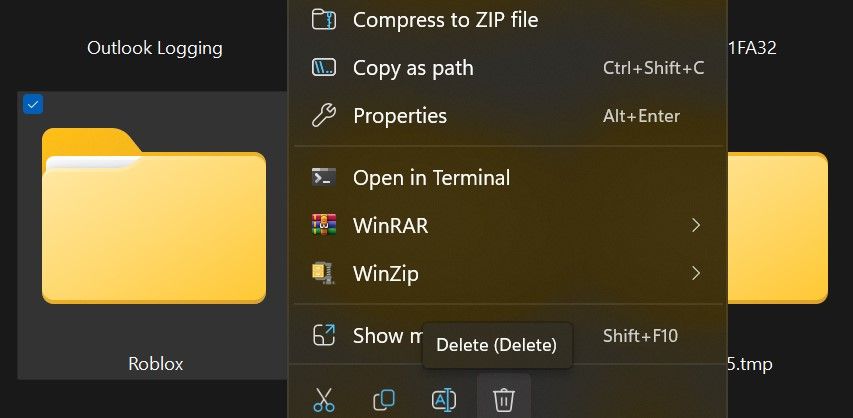
How To Fix Roblox Error 280 100 Working Solutions Open The Roblox Folder . The BEST Method To DELETE Roblox Files From Your Computer In 2025 YouTube . Young People Are Protesting ICE And Reenacting Immigration Raids In Roblox Age Check 26134 . How To Add RBXM Files To Roblox Studio 2025 YouTube . How To Delete Roblox Worlds Is It Possible Delete Roblox File



Where Is The Roblox Folder Located At Abby Humphries Blog . Roblox Headless Head How To Get It In Game Beebom COntent Folder In Roblox Files . FIX An Error Occurred While Starting Roblox On Windows 11 10 8 7 4 Roblox Open File Location. Build Up Of Outdated Roblox Version Folders Engine Bugs Developer . How To Move Roblox And Studio Off Your C Drive Windows Community


Version History Needs Naming Search And Folders Studio Features . Remove Roblox From Mac Complete Uninstall Roblox Info Panel 1x . Roblox Installer Critical Error 2026 Fix Guide Delete Roblox Version Folder . So With The Fiasco Of Roblox Only Opening As A Background Client So With The Fiasco Of Roblox Only Opening As A Background V0 . Recent Games Under File No Longer Populates With Recent Files Engine
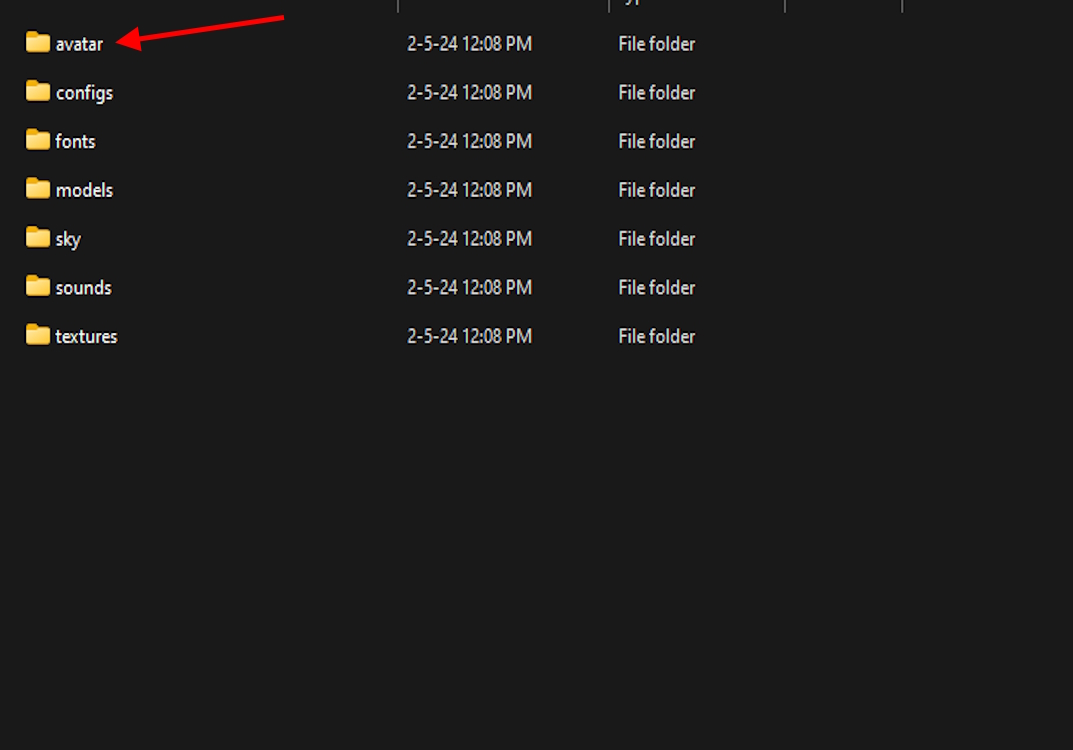
How To Move Roblox To Another Drive Easy Roblox Folder . Where Does Roblox Store Their Cache Now Platform Usage Support . How To Fix The The Application Encountered An Error In Delete Roblox Temporary Folder In The Windows Temp Folder . How To Find Roblox Folder Location Roblox Folder Location Tn . Roblox Headless Head How To Get It In Game Beebom Roblox Game FIles Avatar Folder
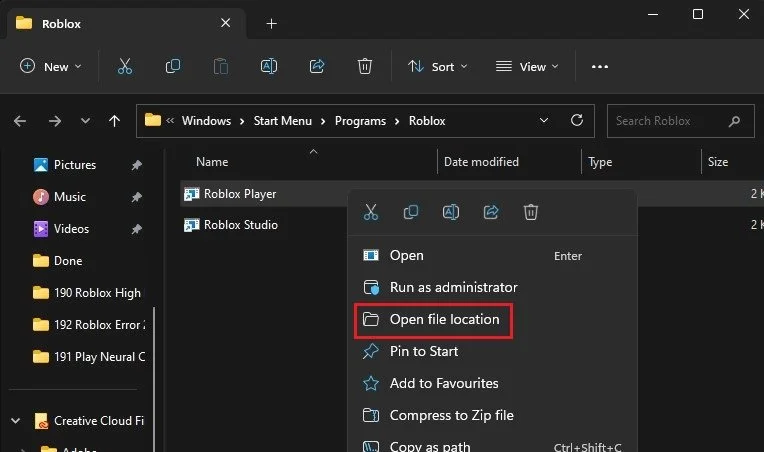



How To Fix Roblox Error Code 268 On PC Tech How 3 Roblox Open File Location. Build Up Of Outdated Roblox Version Folders Engine Bugs Developer . 100 Unofficial Roblox Annual 2026 Lipscombe Daniel 100 Unofficial 51ZwwJtIAoL . Basically Roblox In 2026 There Cooked 37 Ahuobm L.webp. Los Angeles County Files A Major Lawsuit Against Roblox Los Angeles County Files Major Lawsuit Against Roblox
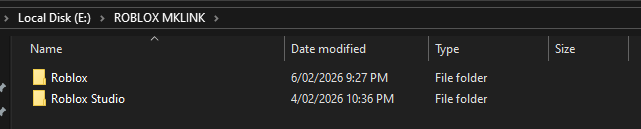
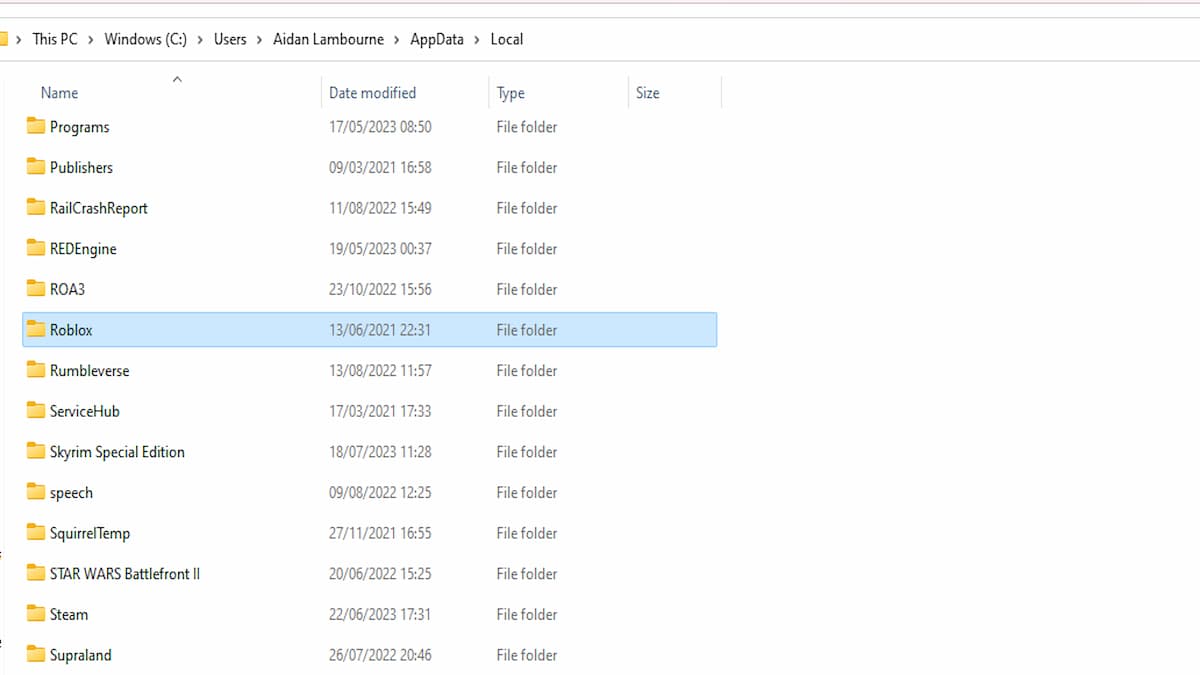

How To Move Roblox And Studio Off Your C Drive Windows Community . How To Change Account Location On Roblox 2026 Change Account Location Roblox 3 . Where Is The Roblox Folder Located At Abby Humphries Blog Roblox Folder In AppData . How To Change Roblox Death Sound Tutorial Tech How 2 Roblox Versions Folder. How To Find Roblox File Location On Windows Mac Easy Guide YouTube